KsGridコントロールで、ユーザーが、セルの高さや幅をリサイズ出来るようにした場合(デフォルト)、次回の起動時に、前回のユーザーの調節した、高さや幅を記憶していて再度設定したいですね。
GetAllHeight メソッド(関数) GetAllWidth メソッド(関数)を使用します。
これらの関数は、すべての高さや幅を記録した、タブ区切りの文字列を取得します。
情報をテキストファイルに保存する方法を紹介します。
Imports System
Imports System.IO
Imports KamoyaSolutions.KsGrid
Public Class Form1
Private Sub Form1_FormClosed(ByVal sender As Object, ByVal e As System.Windows.Forms.FormClosedEventArgs) Handles Me.FormClosed
'ファイル書き込み用のStreamWriterを用意します。
Dim sw As StreamWriter
sw =
My.Computer.FileSystem.OpenTextFileWriter
(My.Application.Info.DirectoryPath &
"\HeightWidth.txt", False)
'すべての高さや幅を記録した文字列を取得し、書き込みます。
sw.WriteLine(Me.KsGrid1.Grid.GetAllHeight)
sw.WriteLine(Me.KsGrid1.Grid.GetAllWidth)
sw.Close()
sw.Dispose()
End Sub
Private Sub Form1_Load(ByVal sender As Object, ByVal e As System.EventArgs) Handles Me.Load
'サブプロシージャーで、すべての高さや幅を取得します。
ReadHW()
Me.KsGrid1.Values.ValueString(1, 1) =
"KsGrid1"
Me.KsGrid1.Draw()
End Sub
Private Sub ReadHW()
Dim sr As StreamReader
Dim StrHeight As String
Dim StrWidth As String
'ファイルが存在しない場合に備えてエラー処理を用意します。
Try
'読み込み用のStreamReaderを用意します。
sr =
My.Computer.FileSystem.OpenTextFileReader
(My.Application.Info.DirectoryPath &
"\HeightWidth.txt")
'すべての高さや幅を記録した文字列を読み込みます。
StrHeight = sr.ReadLine
StrWidth = sr.ReadLine
sr.Close()
sr.Dispose()
Catch ex As Exception
Exit Sub
End Try
'取得した文字列が、空白でなければ、グリッドにセットします。
If StrHeight <> ""
AndAlso StrWidth <> "" Then
Me.KsGrid1.Grid.SetAllHeight(StrHeight,
False)
Me.KsGrid1.Grid.SetAllWidth(StrWidth,
False)
End If
End Sub
End Class
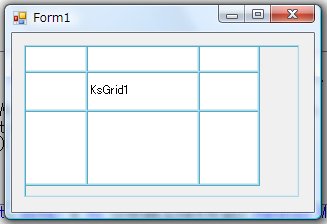
この例では、Private Sub ReadHW を作り、その中で、高さ及び幅を設定しています。
フォームのロードイベントの中で、Private Sub ReadHW を実行しています。
このように、KsGridコントロールで、全ての高さ及び幅を設定するのは少ないコードですみます。
勿論、情報の保存方法は、様々です。
Microsoft Visual Basic 2005 での使用方法を解説しています。